Generate 3D models for game prototypes
Create quick game props, characters, creatures, vehicles, and environment objects from prompts or images, then export GLB or OBJ for engine and Blender workflows.
Short answer
Use MakeIt3D as a 3D model generator for game prototypes when you need fast props, characters, vehicles, or environment assets. Download GLB for web and real-time previews, or OBJ when you want to clean up the mesh in Blender before importing into a game engine.
Best for
- Unity and Unreal prototype assets
- Indie game props and collectibles
- Roblox-style concept models
- Environment blockouts and visual tests
Use a photo that gives the model enough information
AI reconstruction works best when the subject has a clean silhouette, visible depth, and enough contrast from the background.
- Prompt for a single asset instead of a full scene, such as a sci-fi crate, potion bottle, racing kart, or stone arch.
- Add style cues like low-poly, stylized, realistic, toy-like, medieval, sci-fi, or fantasy.
- Use GLB for quick real-time previews and OBJ when the model needs cleanup, retopology, or material edits.
- For image inputs, upload a clear reference with the full prop or character visible.
Workflow
Define the asset role
Decide whether the model is a prop, character, vehicle, pickup item, decor piece, or environment object. A clear role makes the prompt easier to control.
Generate a prototype model
Use a concise prompt with object, style, and material details, then inspect the generated model in the browser from every angle.
Export and prepare for engine use
Download GLB for quick previews or OBJ for Blender cleanup. For production games, review polygon density, scale, origin, materials, and collisions before engine import.
Download formats
- GLB
- Best for fast real-time previews, browser demos, and asset handoff as one compact textured file.
- OBJ
- Best for Blender cleanup, retopology, UV work, and preparing assets before Unity or Unreal import.
- STL
- Best when a game object also needs to become a physical prototype, mini, or tabletop prop.



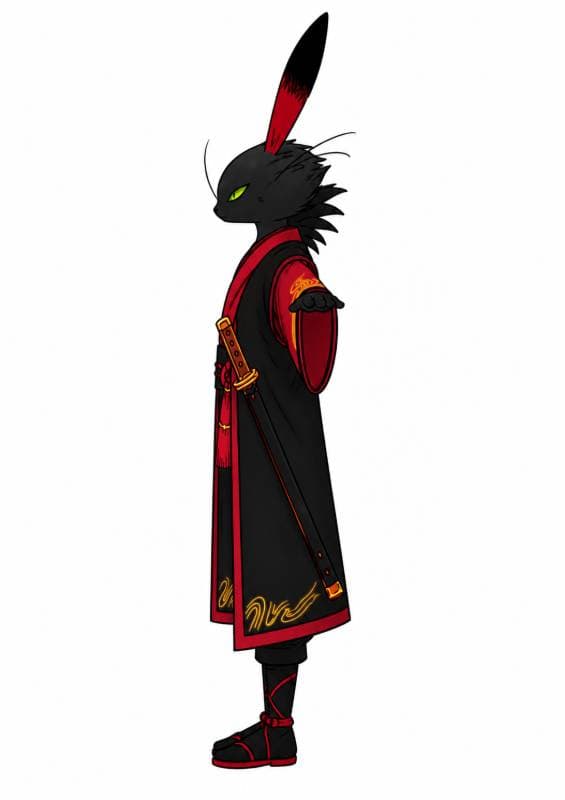
Made with MakeIt3D
Real models generated by people using the site — open one to rotate it and download the file.


FAQ
Can I use AI-generated 3D models in Unity or Unreal?
Yes. Download GLB or OBJ and import the asset into your 3D workflow. For production use, inspect scale, origin, materials, polygon count, and collision setup first.
Is GLB or OBJ better for game assets?
Use GLB for fast textured previews and web-based workflows. Use OBJ when you plan to clean up geometry, retopologize, or adjust materials in Blender before engine import.
Are MakeIt3D game assets production-ready?
They are best for prototypes, concepting, blockouts, and fast visual tests. Production assets usually need optimization, retopology, UV review, and engine-specific setup.