Turn a product photo into a downloadable 3D model
Upload a clear product image and generate a textured 3D model you can preview, remix, or download as GLB, OBJ, or STL.
Short answer
The fastest way to convert a product photo to a 3D model is to use a centered photo with a clean background, generate the model, then download GLB for web or AR, OBJ for editing, or STL for prototyping and 3D printing.
Best for
- Ecommerce product previews
- AR product mockups
- Packaging and prop visualization
- Fast prototype references before CAD work
Use a photo that gives the model enough information
AI reconstruction works best when the subject has a clean silhouette, visible depth, and enough contrast from the background.
- Use a matte product shot when possible; reflective and transparent surfaces are harder to reconstruct.
- Keep the full product visible, including the base and side outline.
- Use a plain background with contrast against the object.
- Crop the photo so the product fills most of the frame without touching the edges.
Workflow
Prepare one strong source photo
Start with a high-resolution JPG, PNG, or WebP where the product is centered and not partially hidden.
Generate the 3D model
Upload the product photo to MakeIt3D and use Quick Plus or Quick for fast iteration. Use Precise when the shape and surface detail matter most.
Choose the right export
Download GLB for web and AR previews, OBJ for Blender or Maya editing, or STL when you want a printable prototype.
Download formats
- GLB
- Best for online product viewers, AR, and sharing compact textured assets.
- OBJ
- Best when a designer needs to clean up or edit the mesh in a 3D tool.
- STL
- Best for shape checks, prototypes, and 3D printing workflows.
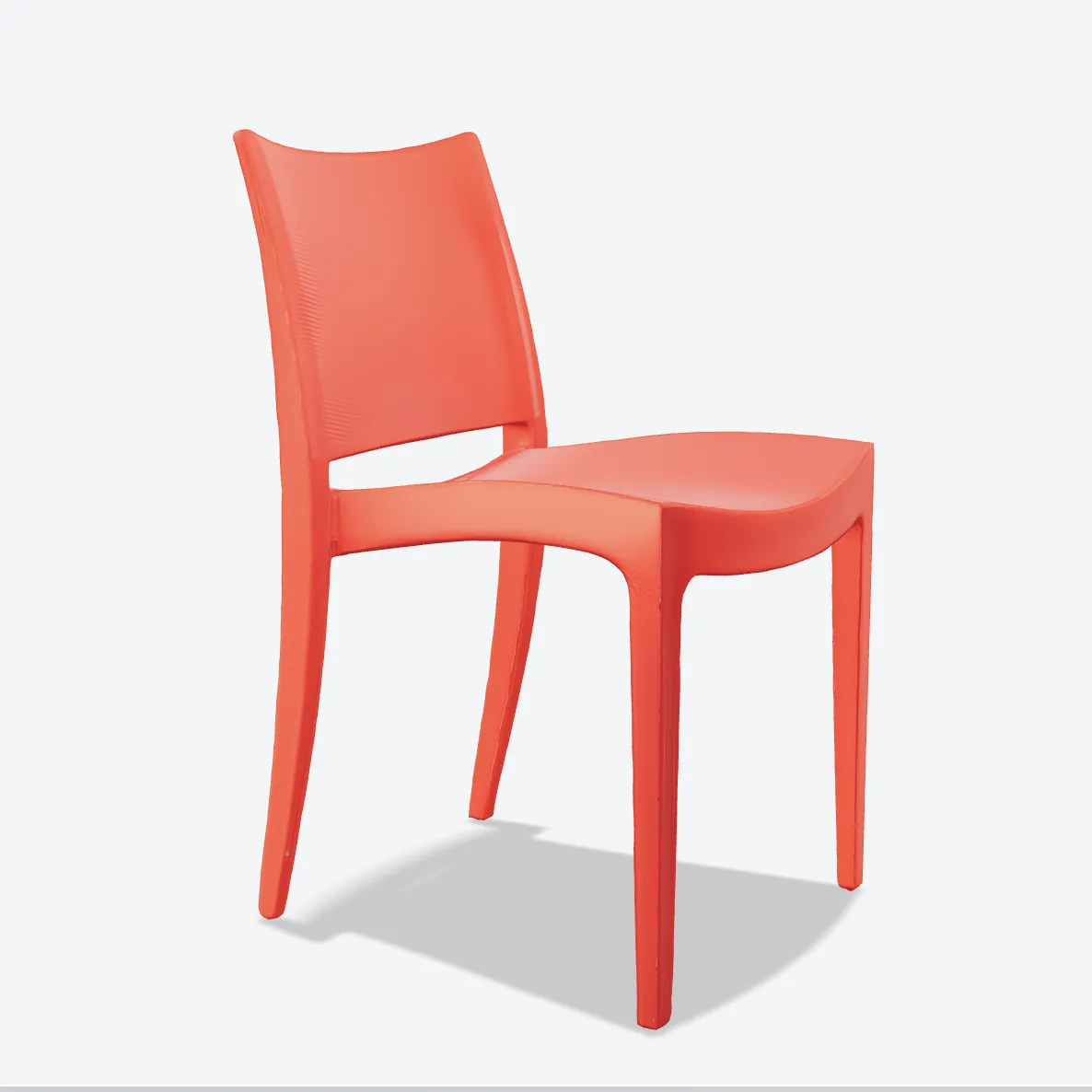


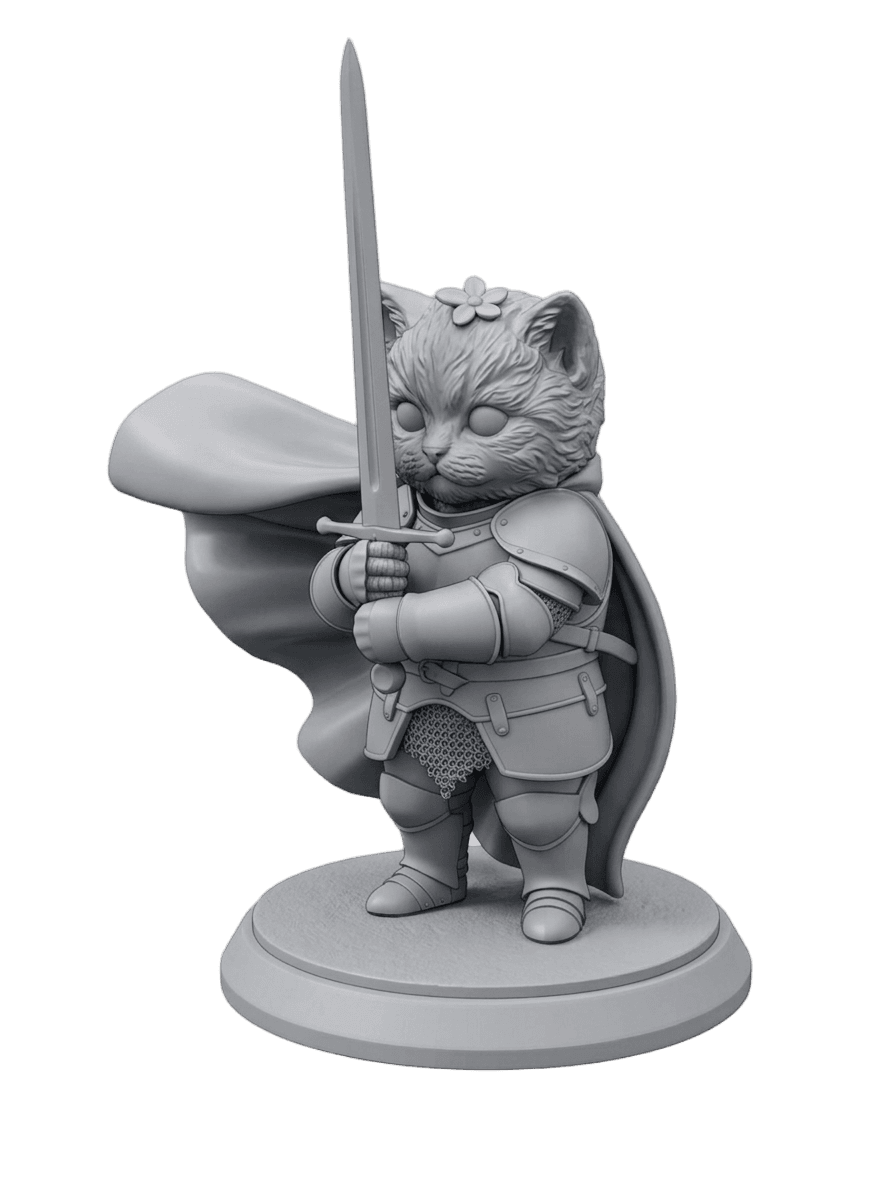
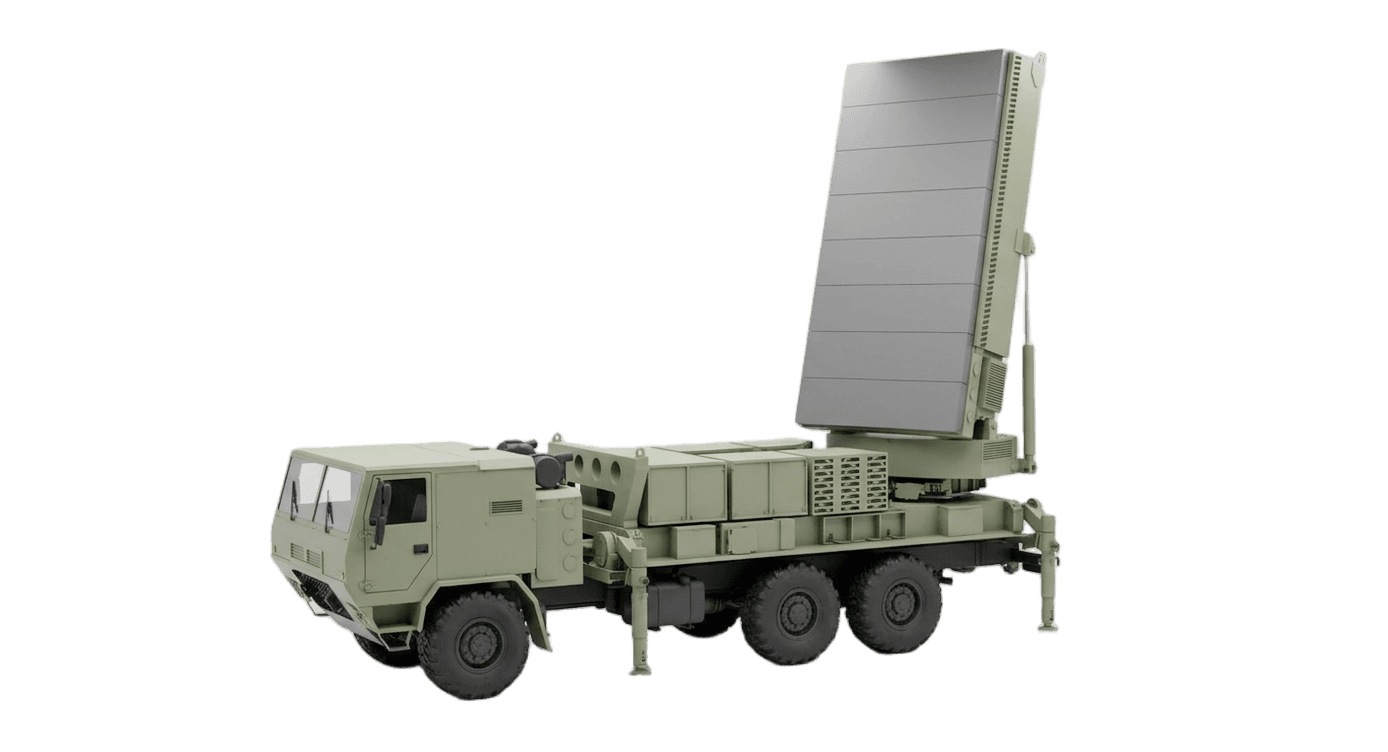
Made with MakeIt3D
Real models generated by people using the site — open one to rotate it and download the file.

FAQ
Can I create a 3D model from a single product photo?
Yes. MakeIt3D can generate a 3D mesh from a single product photo. A clean background and visible object outline produce the best results.
Which format should I use for ecommerce product visualization?
Use GLB for web viewers, AR previews, and compact textured assets. Use OBJ when you want to edit the model in a 3D application.
Can product photo to 3D replace CAD?
It is best for visual models and prototypes. For dimensioned mechanical parts, a traditional CAD workflow is a better fit.