Generate 3D models for 3D printing
Create printable objects, decor, toys, tabletop props, and prototype models from prompts or images, then download STL for your slicer.
Short answer
Use MakeIt3D as a 3D printing model generator when you want a fast printable mesh from a prompt or image. Download STL, inspect it in your slicer, set scale and supports, then print after checking thin parts, overhangs, and mesh errors.
Best for
- Printable toys and decor
- Tabletop props and mini ideas
- Prototype shape checks
- Hobby printer experiments
Use a photo that gives the model enough information
AI reconstruction works best when the subject has a clean silhouette, visible depth, and enough contrast from the background.
- Use a single object with a clear outline and avoid thin floating details when possible.
- For prompts, describe the object as printable, solid, simple, or support-friendly.
- Inspect STL files in a slicer before printing; AI meshes may need scale, support, or repair adjustments.
- Use Precise quality for final prints where small surface details matter.
Workflow
Start with a print-friendly idea
Choose an object that can exist as a solid mesh, such as a toy, figurine, decor piece, planter, prop, or prototype shape.
Generate and inspect the model
Preview the generated model from all angles. Regenerate if the silhouette is unclear, the base is missing, or small parts look too fragile to print.
Download STL and slice
Open the STL in Bambu Studio, Cura, PrusaSlicer, or OrcaSlicer, then set scale, supports, orientation, and infill before sending it to the printer.
Download formats
- STL
- Best for slicers, hobby printers, print services, and prototype checks.
- OBJ
- Best when you want to repair, sculpt, or edit the mesh before printing.
- GLB
- Best when you want to preview or share the printable model online before slicing.
Example models



Made with MakeIt3D
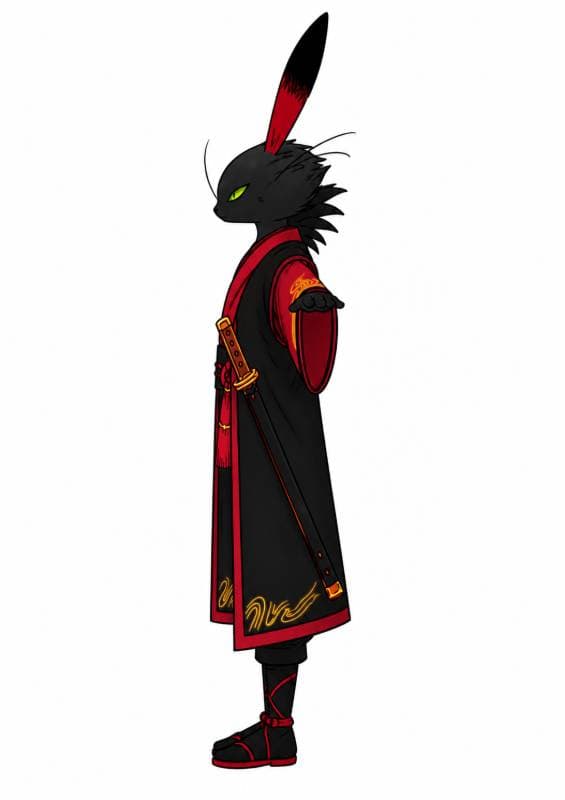
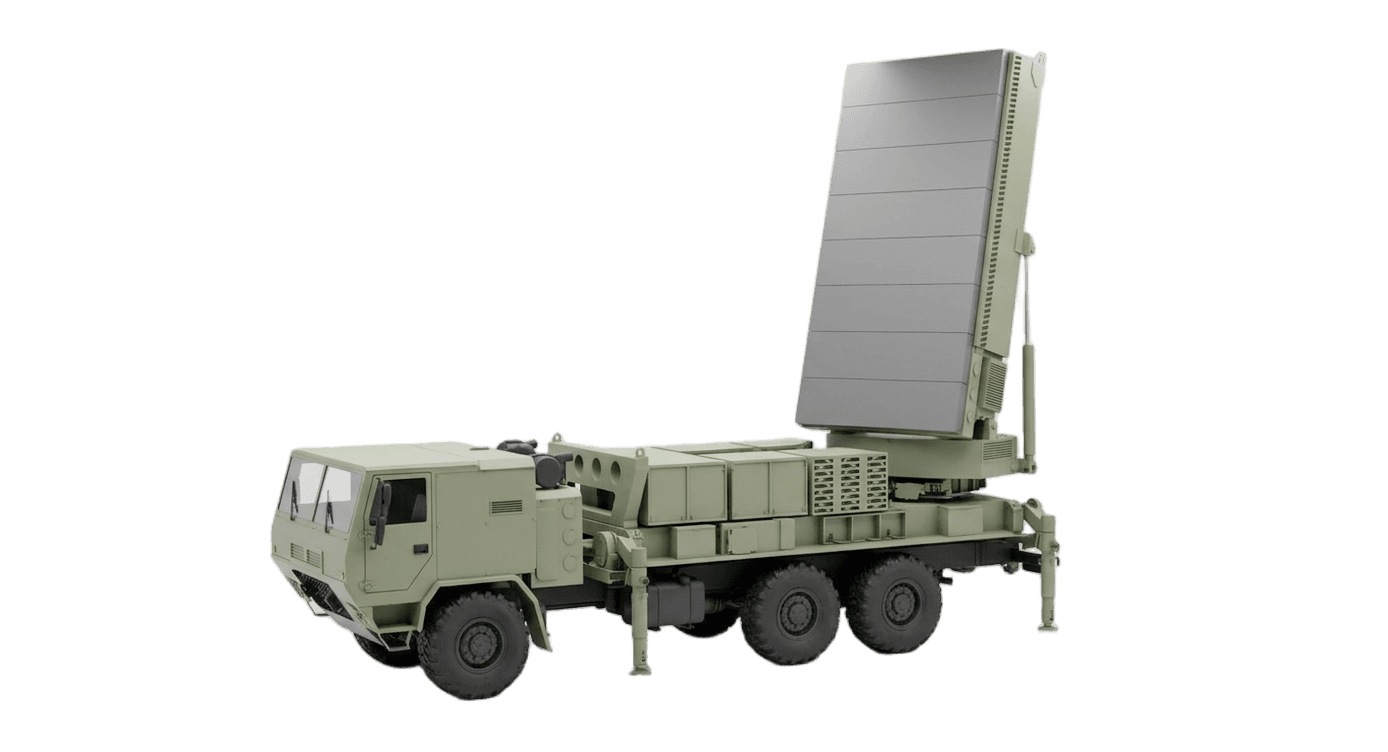
Real models generated by people using the site — open one to rotate it and download the file.

FAQ
Can MakeIt3D generate STL files for 3D printing?
Yes. MakeIt3D can generate a 3D model and export STL for slicers. Always inspect scale, supports, overhangs, and mesh health before printing.
Which slicers can I use with generated STL files?
STL files work with Bambu Studio, Cura, PrusaSlicer, OrcaSlicer, and most consumer 3D printing slicers.
Are AI-generated 3D printing models ready to print immediately?
Some simple models can print quickly, but you should still check them in a slicer. Detailed models may need repair, scaling, support changes, or mesh cleanup.